8 Operation — Operator instructions
This chapter focuses on the operator. It describes how the FLIR EST Kiosk screening station works and how you operate the station.
8.1 FLIR EST Kiosk screening station
The FLIR EST Kiosk is used to screen persons for elevated skin temperatures. An alarm will trigger when the measured temperature is higher than
a reference temperature.
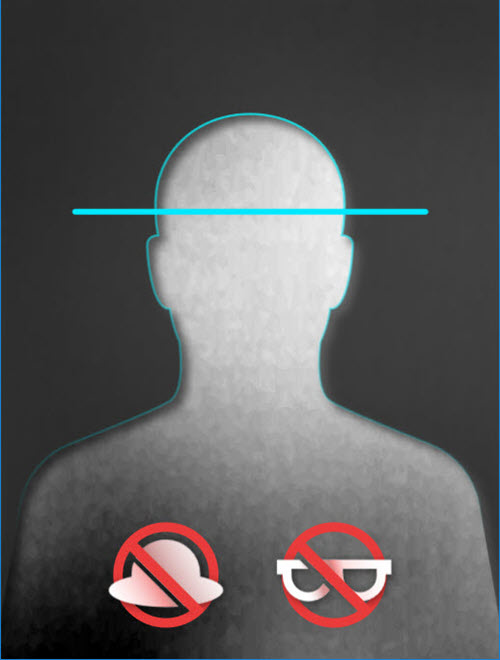
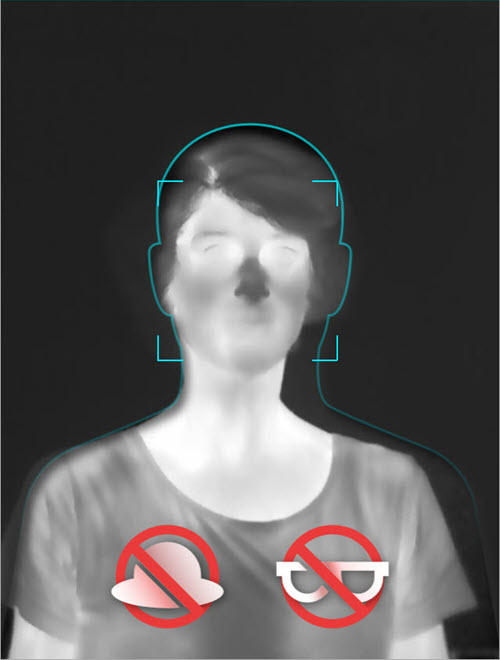
The FLIR EST Kiosk measures the temperature at the tear duct. For that reason, it is important that the eyes of the screened person are not
covered by eyeglasses, hair, or other items.
It is up to your company to establish a process for screening alarms. You must know what you and the visitor shall do if the
system indicates an elevated temperature.
For accurate and efficient screening, it is recommended that the screening station is set up as described in chapter
6 Setup — Screening station
.
Figure 8.1 Typical screening station
shows a typical screening station.
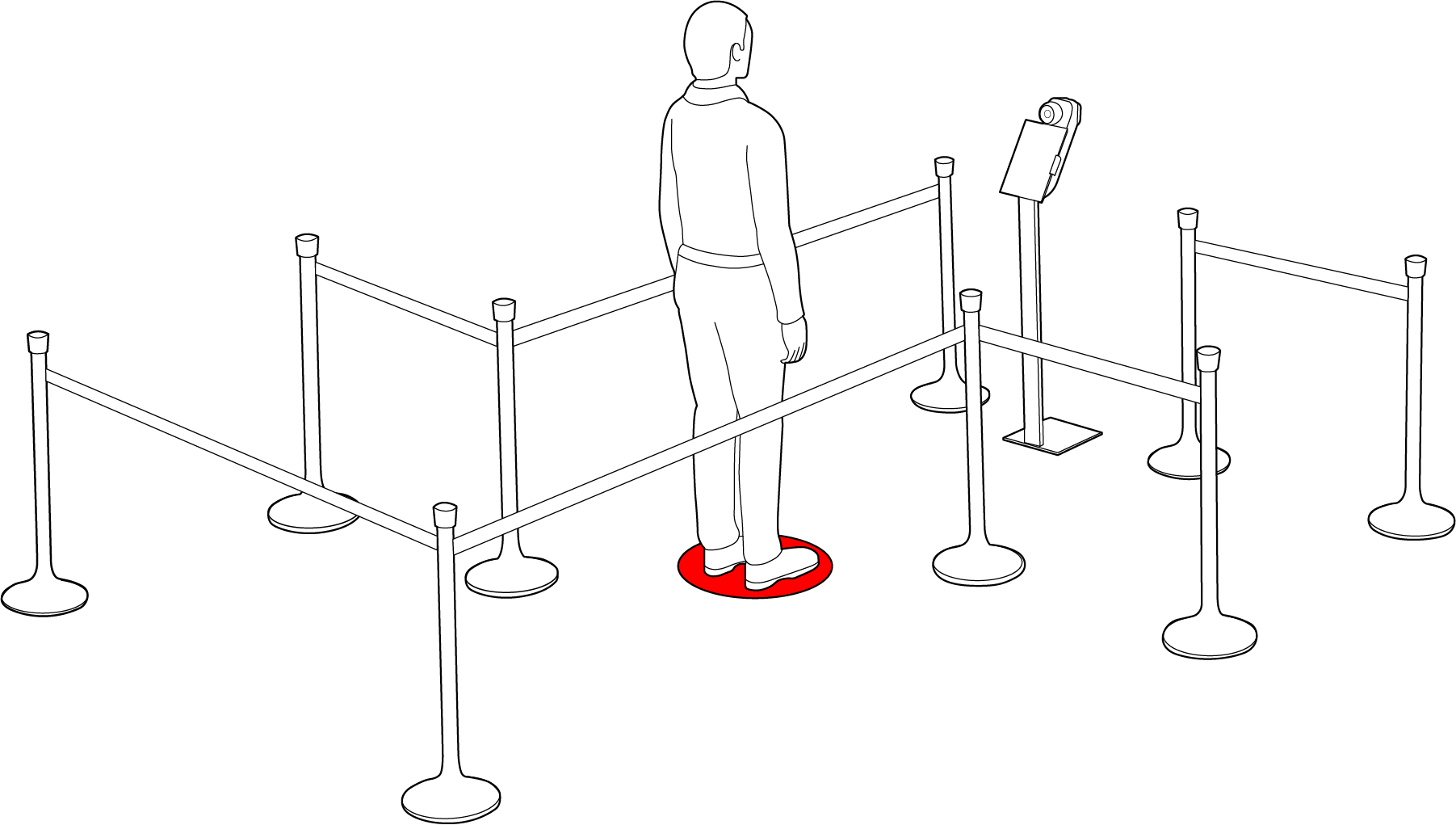
Figure 8.1 Typical screening station
- FLIR EST Kiosk.
-
Screening position.
It is important that the screened person stands at the correct distance from the FLIR EST Kiosk. This is called the screening position. During the setup of the screening station, the screening position should have been clearly marked by a floor sticker. -
Queueing system, e.g. barriers and arrow floor stickers.
The queueing system guides the visitors into the screening station, to the correct screening position, and out of the screening station. -
Information roll-up.
Roll-up that informs people what the screening is about and why they need to do it. -
Instruction roll-up.
Roll-up that tells people to remove eyeglasses before they are screened. -
Optional: Backdrop.
A backdrop may be needed to prevent background disturbances from reaching the camera, such as passing or queueing people. -
Optional: Operator display.
Secondary display placed near the operator for monitoring.
The screening station typically includes the following equipment:
8.2 Quick guide to FLIR Screen-EST
- The operator window is where you control the screening. For more information, see section 10.2 Operator window .
- The visitor window is what the screened person sees. For more information, see section 9 Visitor — Screening procedure .
The FLIR Screen-EST application consists of two windows:
8.2.1 Start application
You start the FLIR Screen-EST application by double-tapping the desktop icon.
8.2.2 Operator window
The operator window has two tabs. You will only use the Live tab.
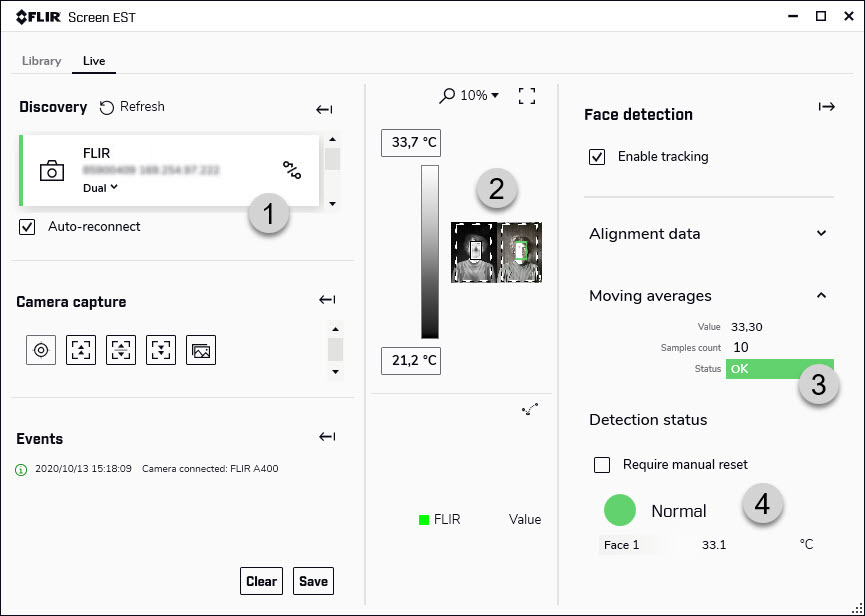
This image shows what the user interface looks like when a camera is connected.
-
This is where you connect the camera. Find the FLIR camera and use the button to the right to connect.
When the Auto-reconnect check box is selected, the camera connects automatically. - The live thermal and visual images from the camera are displayed here.
- The Status indicator shows the sampling status; red when there are no samples, green when the system is adding samples to the reference average calculation.
- The screening result is displayed here; green when the temperature is normal, red when an elevated temperature is detected. Face 1 shows the measured temperature.
8.3 Normal operation
- Prepare the system for a new screening session, see section 8.3.1 Start a new screening session .
- The screening normally does not require any action from you. Depending on your workflow, you may need to be available for guidance and alarms. See also section 8.3.2 Screening procedure .
The normal screening workflow includes the following operator tasks:
If you run into problems, see section
8.4 Problems — What shall I do?
.
You may get questions from the visitors about the screening. For answers to common questions, see section
8.5 Visitor FAQ
.
8.3.1 Start a new screening session
-
Make sure the screening station is in order:
- The FLIR EST Kiosk is placed at the correct position in front of the screening position.
- The screening position is clearly marked.
- The FLIR EST Kiosk power cable is connected to a power outlet.
- The barriers, roll-ups, etc. are in place.
- Turn on the tablet.
- Start the FLIR Screen-EST application by double-tapping the desktop icon.
-
Make sure the camera is connected to FLIR Screen-EST.
The camera is connected if live images are displayed in the operator window. If not, see section 8.4.1 Connect the camera .
-
Maximize the visitor window.
![Graphic]()
- Make sure to screen a non–elevated person first. For more information, see section 8.3.1.1 Collect reference samples .
- The screening station is now ready for visitors.
To prepare the system for a new screening session, do the following:
8.3.1.1 Collect reference samples
The system uses a moving average as reference. An alarm will trigger when the measured temperature is above the sum of the
moving average and an allowed deviation.
The moving average is calculated based on previously registered temperature measurement samples. At the beginning of a new
screening session, there are no previous samples and the system must start to build up the moving average. This is done as
part of the normal screening procedure.
For the very first screened person, no comparison with a reference is possible. Instead, the first measured temperature will
always be added to the moving average and the screening result will always be normal (green). To prevent an elevated temperature
from being used as the starting reference, it is recommended to make sure the first screened person has a non-elevated temperature.
While the system is collecting the first set of samples, the Status indicator shows the number of collected samples.

When the number of collected samples is the same as the Samples count value, the Status indicator only displays OK.

8.3.2 Screening procedure
Once the screening station is up and running, the FLIR EST Kiosk normally does not require any action from you. Depending on your workflow, you may need to be available for guidance and
alarms.
8.3.2.1 Screening procedure
- The visitors enter the queue to the screening station.
- One visitor at the time goes to the screening position.
-
The visitor stands still and looks into the camera. The system automatically measures and evaluates the temperature.
-
The system displays a screening result.
-
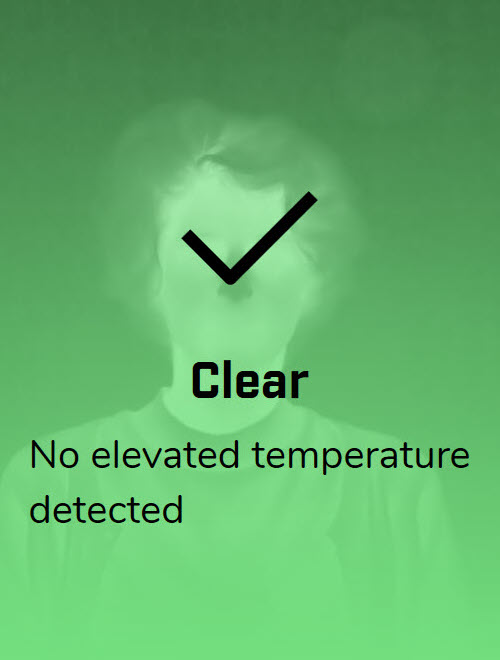
No elevated temperature detected
The visitor exits the screening station. -
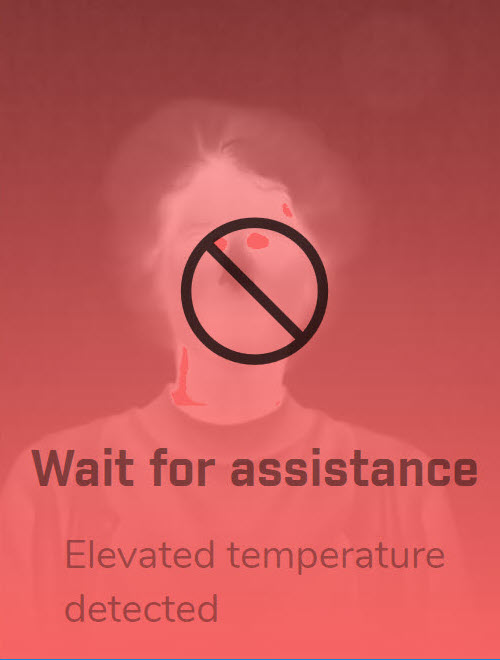
Elevated temperature detected
You and the visitor follow the process for screening alarms that your company has established.
-
No elevated temperature detected
This is what happens during the screening:
8.3.2.2 Handling error information
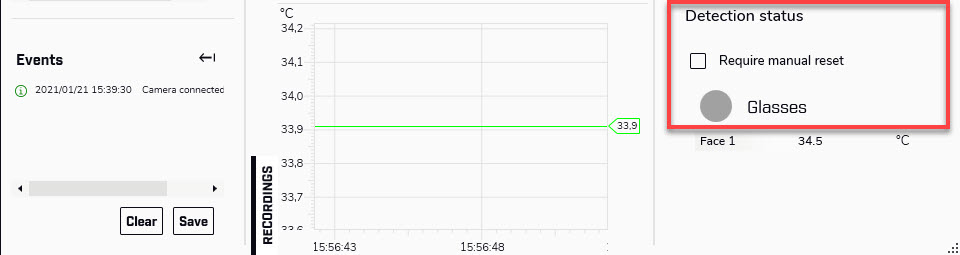
If the system for some reason cannot measure the temperature, information about the problem is displayed in the Detection status section in the operator window.
-
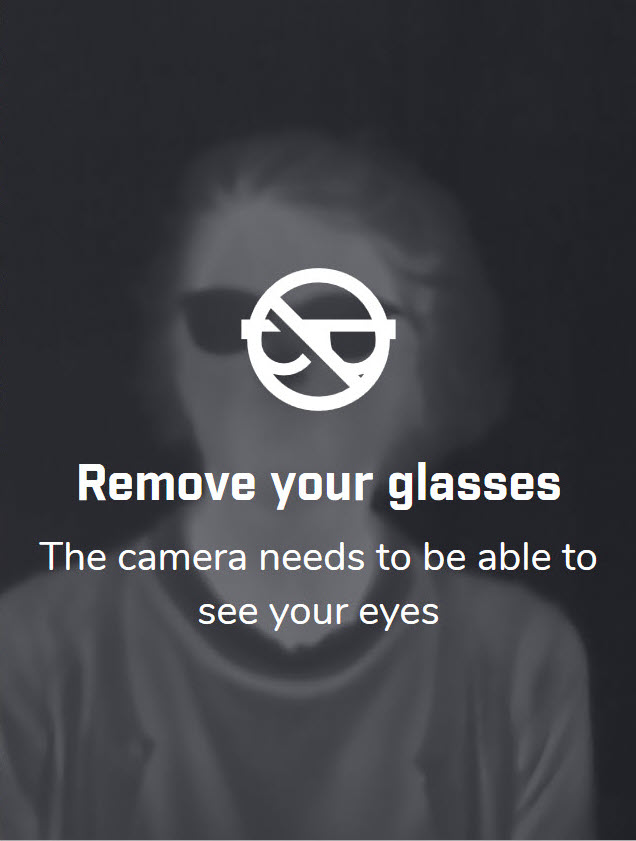
Glasses
Ask the visitor to remove the eyeglasses. -
Bad pose
Ask the visitor to look straight into the camera. -
Too far
Ask the visitor to move closer to the camera. -
Too close
Ask the visitor to move further back. -
Too many
The system can only screen one person at the time. Make sure only one person is in front of the camera. -
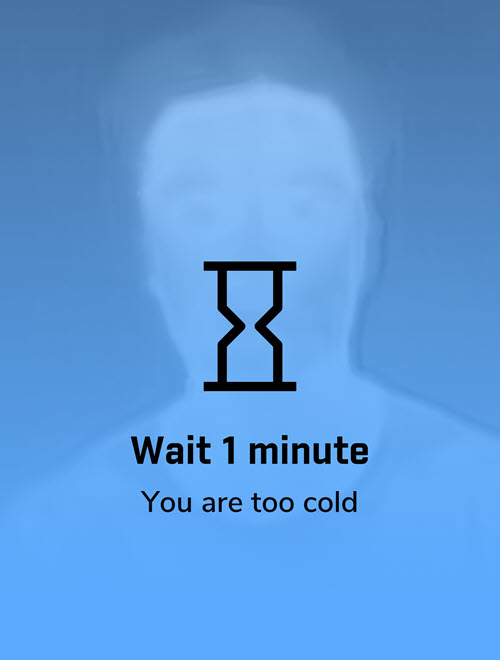
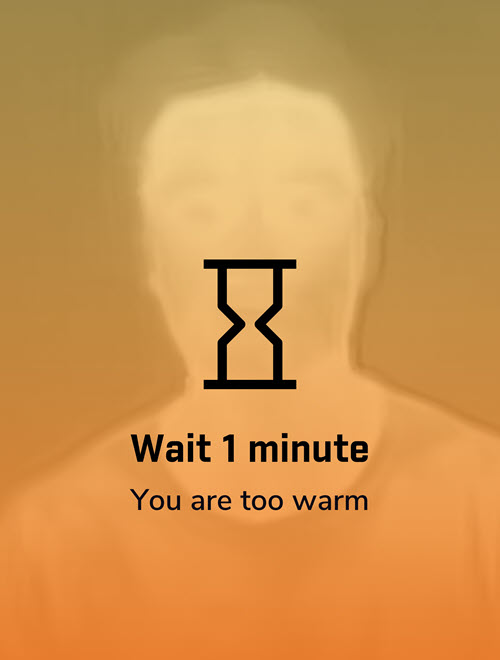
Above skin temperature and Below skin temperature
The measured temperature is too low/high to be evaluated. Ask the visitor to wait a few minutes and then try the screening again. -
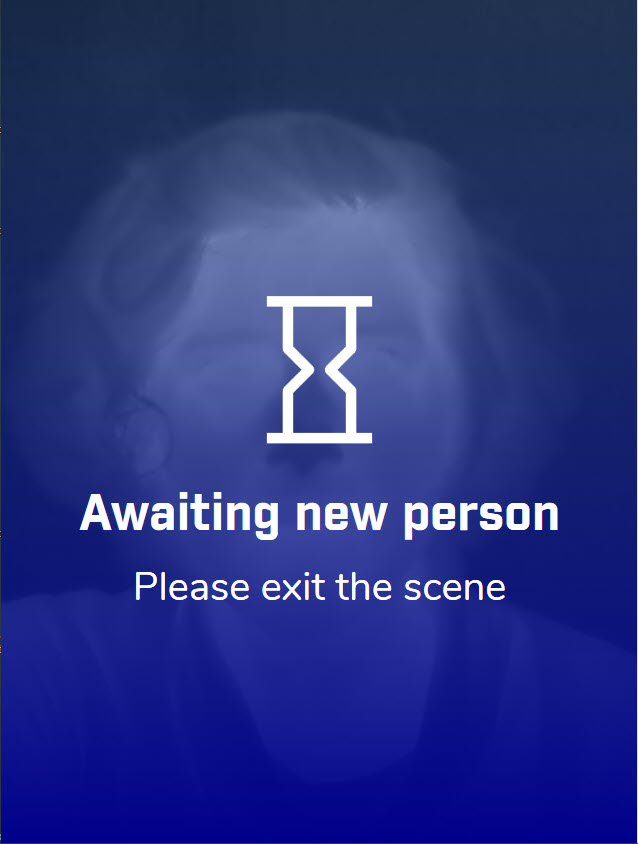
Waiting for exit
Inform the visitor that the screening is completed and that he/she can leave the screening station.
The visitor window also displays graphics and messages (see below), but the visitor may need your assistance to know what
to do:
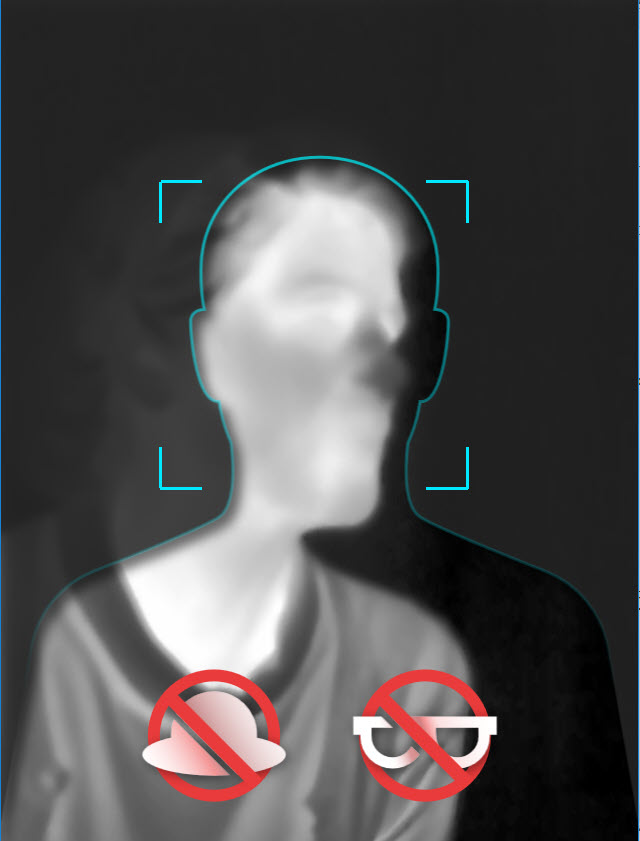
The visitor windows corresponding to the Detection status information is shown below. Note that the normal detection graphics are displayed for the statuses Bad pose, Too far, and Too close.
8.3.2.3 Pause the screening
You can temporarily pause (stop) the screening. This does not reset the reference average, meaning that the screening continues
with the same reference average when you start the screening again.
While the screening is paused, the visitor window displays the System closed message.
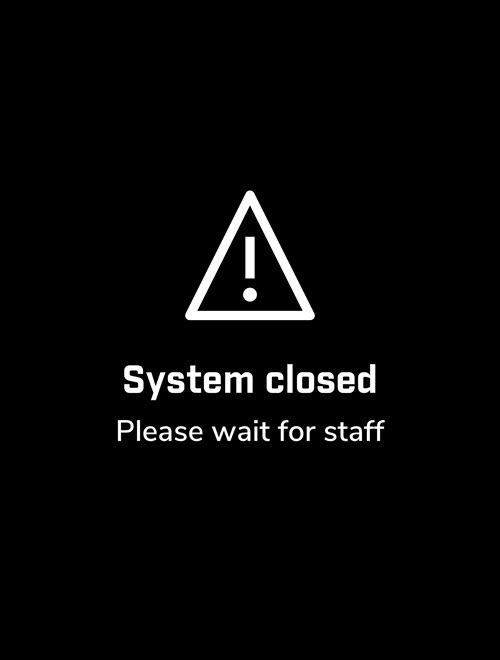
To temporarily stop the screening, clear the Enable tracking check box in the Face detection pane.
To resume the screening, select the Enable tracking check box.

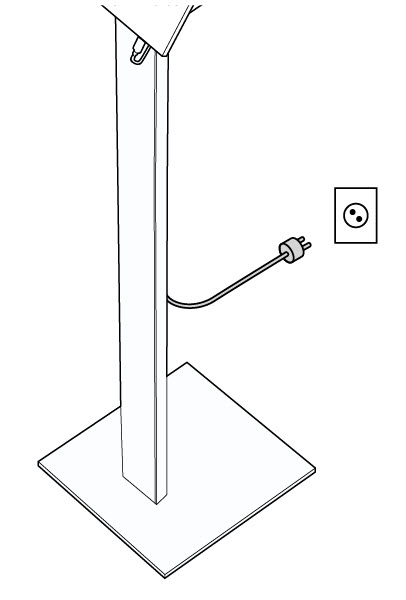
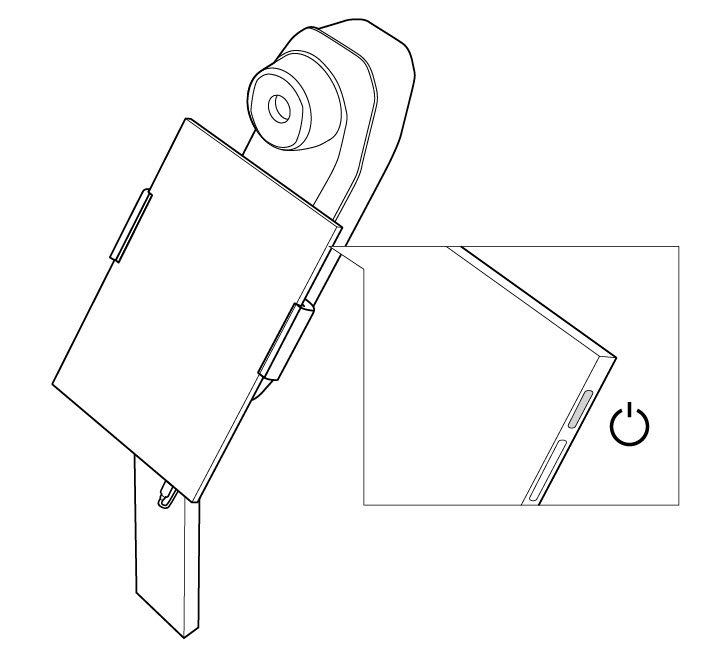
8.3.3 Turn on/off the FLIR EST Kiosk
The FLIR EST Kiosk can be powered continuously, but you may want to turn of the equipment, e.g. to save energy or make room for cleaning.
-
To turn on/off the camera unit, connect/disconnect the power cable to a power outlet.
![Graphic]()
-
To turn on/off the tablet, push the power button.
![Graphic]()
Turn on/off the FLIR EST Kiosk, do the following:
8.4 Problems — What shall I do?
This section describes some actions you may need to perform and what you shall do in case of problems.
8.4.1 Connect the camera
-
In the FLIR Screen-EST operator window, find the FLIR camera in the Discovery list and tap the connect button. This connects the camera and displays live images.
![Graphic]()
-
Make sure the Auto-reconnect check box is selected. This will make the camera connect automatically the next time you start FLIR Screen-EST.
![Graphic]()
To connect the camera to the FLIR Screen-EST application, do the following:


8.4.2 Reset the reference temperature
-
Tap somewhere in the Value/Samples count/Status area. This displays the reset button.
![Graphic]()
-
Tap the reset button.
![Graphic]()
-
The Status changes to Off (red).
The system will now start to build up a new reference average. It is recommended to make sure the first screened person has a non-elevated temperature. For more information, see section 8.3.1.1 Collect reference samples .
To reset the reference temperature average, do the following:


8.4.3 All visitors get screening alarms
- Reset the reference temperature, see section 8.4.2 Reset the reference temperature .
- If the problem still remains after the reset, some FLIR Screen-EST settings should be adjusted. For more information, see section 6.6.4 False alarms .
If all visitors get screening alarms and there is reason to believe that these are false alarms, do the following:
8.4.4 Camera focus changed by mistake
For accurate screening, the camera focus must be correct. The camera focus is adjusted as part of the screening station setup
and must not be changed.
If you happen to tap one of the Camera capture buttons in the FLIR Screen-EST operator window, the camera focus changes. If this happens, a new focus adjustment must be made.
- Place a person at the screening position.
-
In the FLIR Screen-EST operator window, tap the Auto adjust focus button. This adjusts the focus automatically.
![Graphic]()
- When the focus adjustment is completed, make sure you do not tap any of the Camera capture buttons.
To adjust the camera focus, do the following:

8.4.5 Somebody moved the equipment
The screening station is carefully set up to make sure the screening position is at the correct distance from the FLIR EST Kiosk.
- If the position of the FLIR EST Kiosk is marked, e.g. by tape on the floor, make sure to put the FLIR EST Kiosk back in the correct position.
- If there are no markings for the FLIR EST Kiosk or if the marking for the screening position has been moved, the entire screening station should be set up again following the instructions in chapter 6 Setup — Screening station .
If the FLIR EST Kiosk or the screening position floor sticker has been moved, do one of the following:
8.4.6 Many Too cold messages
The system only evaluates temperatures within a certain temperature range. If the measured temperature is outside this range,
a Too cold or Too warm message is displayed.
The temperature range is defined by the Skin minimum temperature and Skin maximum temperature settings, see section
10.3.1
Face detection tab
. It is recommended to use the default values. Only change the settings if you experience problems and understand the consequences.
In a situation where all visitors come directly from a cold outdoor environment, without possibility to adapt to the indoor temperature, the screening
flow may be disturbed by many “Too cold” messages. By changing the Skin minimum temperature setting to a lower value, there will be fewer “Too cold” messages.
If you have visitors that come both from a cold outdoor environment and a warm indoor environment, you need to be careful about changing the Skin minimum temperature setting. With a lower value, there is a risk that people with an elevated temperature are not detected. For more information,
see section
10.4.4.2 Mixed flow – both cold and warm
.
8.5 Visitor FAQ
This section helps you with answers to questions you may get from the visitors.
Is the screening dangerous?
No, a thermal camera is like a regular camera, except that it is sensitive to heat (thermal radiation) instead of visual light.
No, a thermal camera is like a regular camera, except that it is sensitive to heat (thermal radiation) instead of visual light.
Why do I have to remove my eyeglasses?
The system measures the temperature in the area around the tear duct and a thermal camera cannot measure temperatures through eyeglasses. For a correct screening result, removing eyeglasses is crucial.
The system measures the temperature in the area around the tear duct and a thermal camera cannot measure temperatures through eyeglasses. For a correct screening result, removing eyeglasses is crucial.
- No information that can be connected to any individual is saved.
- If an elevated temperature is detected, an image and/or the measured temperature is saved.
Do you save any information about me?
The answer depends on your company policies and how the system has been configured.
The answer depends on your company policies and how the system has been configured.